
Time Machine and Google Drive Add an off-site cloud backup to your Mac
Keep Time Machine for local recovery, and use CloudChute to automatically back up the folders you choose on your Mac to Google Drive, Dropbox, Box, Amazon S3 or S3-compatible storage. Your files have a separate off-site copy, without replacing your existing backup routine.
CloudChute backs up selected folders, not Time Machine backup archives. It does not upload or migrate an existing Time Machine backup.
Why Keep a Separate Off-Site Backup?
Time Machine is useful for recovering files locally, but a separate off-site backup provides another layer of protection if your Mac or backup drive is lost, damaged or unavailable. CloudChute complements Time Machine by automatically backing up the Mac folders you choose to your own cloud storage, keeping a separate copy of your important files away from your Mac.
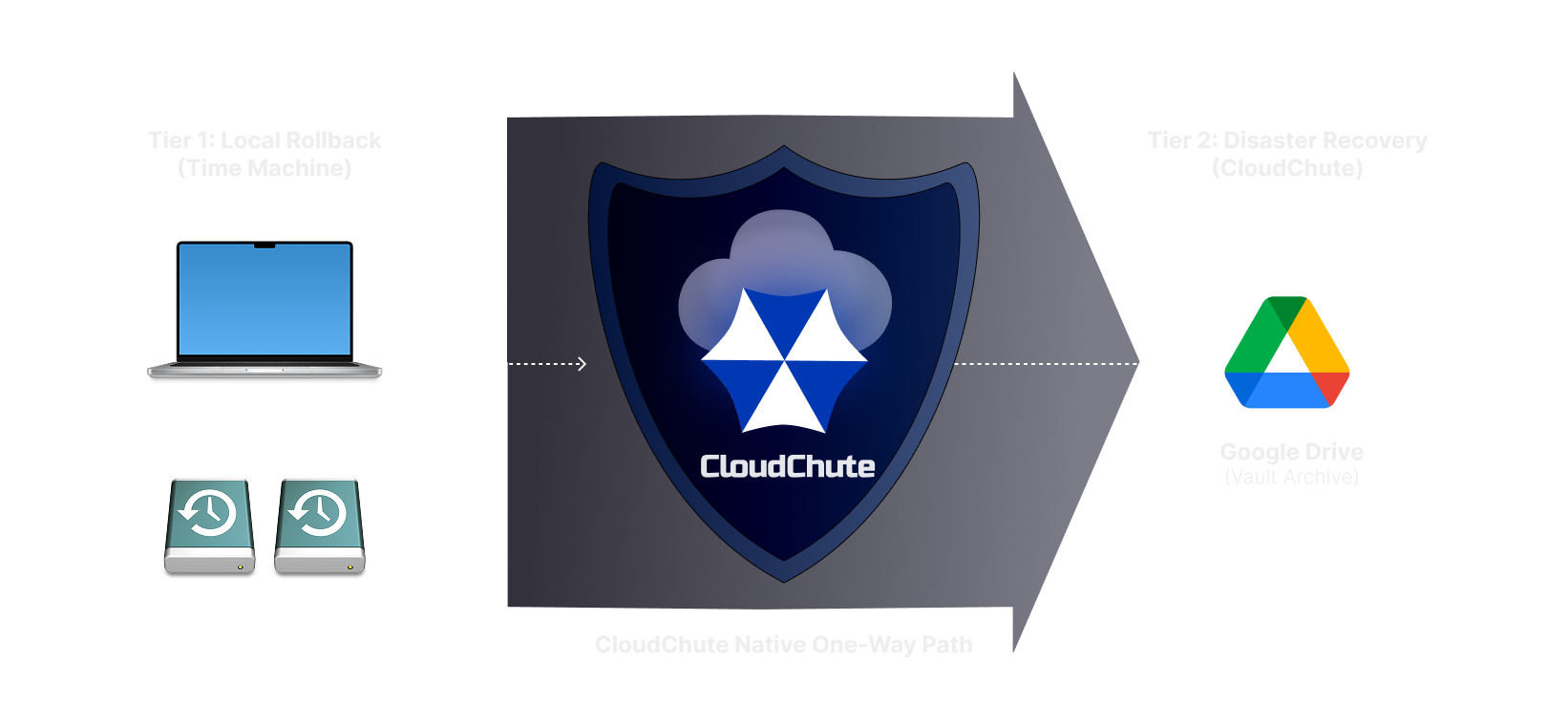
Time Machine provides local file recovery, while CloudChute creates a separate, encrypted off-site backup of your chosen Mac folders in Google Drive, Dropbox, Box or Amazon S3. Keeping a copy in cloud storage adds another layer of protection if your Mac or local backup drive is lost, damaged or unavailable.
Why Manually Uploading Time Machine Backups Doesn't Work Well
Some Mac users try to store a Time Machine backup in Google Drive or another cloud storage service by manually uploading the backup files or placing them in a synchronised folder. However, Time Machine backups can contain complex directory structures and large numbers of files, making them difficult to transfer and maintain reliably using a standard browser upload or cloud-sync tool.
CloudChute takes a different approach. Rather than uploading an existing Time Machine backup, it automatically backs up the Mac folders you choose directly to your own cloud storage, creating a separate off-site copy of your important files.
Bridging the Gap with CloudChute
CloudChute complements your local backup strategy by automatically backing up the Mac folders you choose to your own cloud storage. It provides a dedicated cloud backup for Mac to Google Drive, Dropbox, Box or Amazon S3, keeping a separate copy of your important files away from your Mac. Built as a native Swift application, CloudChute handles encryption and one-way backups in the background, helping protect your chosen files if your Mac or local backup drive is lost, damaged or unavailable.
Native Performance for Your Mac
Built with Swift for macOS, CloudChute is designed to run efficiently in the background while you get on with your work. Whether you're mixing tracks in Ableton Live, editing video or handling demanding workloads, CloudChute backs up your chosen files without unnecessarily getting in the way.
CloudChute also detects when your Mac is connected to power and adjusts its backup behaviour to account for whether you're plugged in or running on battery. This helps balance backup activity with power consumption, keeping your files protected while respecting your workflow.
10-Day Free Trial
Your data protection strategy is only as strong as its furthest copy. By adding a secure cloud backup layer to your existing backup routine, you ensure that your work is recoverable regardless of what happens to your physical hardware. We invite you to explore the benefits of a native, off-site backup with a ten-day free trial of CloudChute. There is no credit card required to begin, and you can establish your secure connection to Google Drive, Dropbox, Box or Amazon S3 in minutes.