
Setup Guide Let's get your Mac backed up
Follow a few simple steps to keep a safe copy of your files in your own cloud storage.
Step 1 Get CloudChute Open CloudChute
Download and open CloudChute on your Mac.
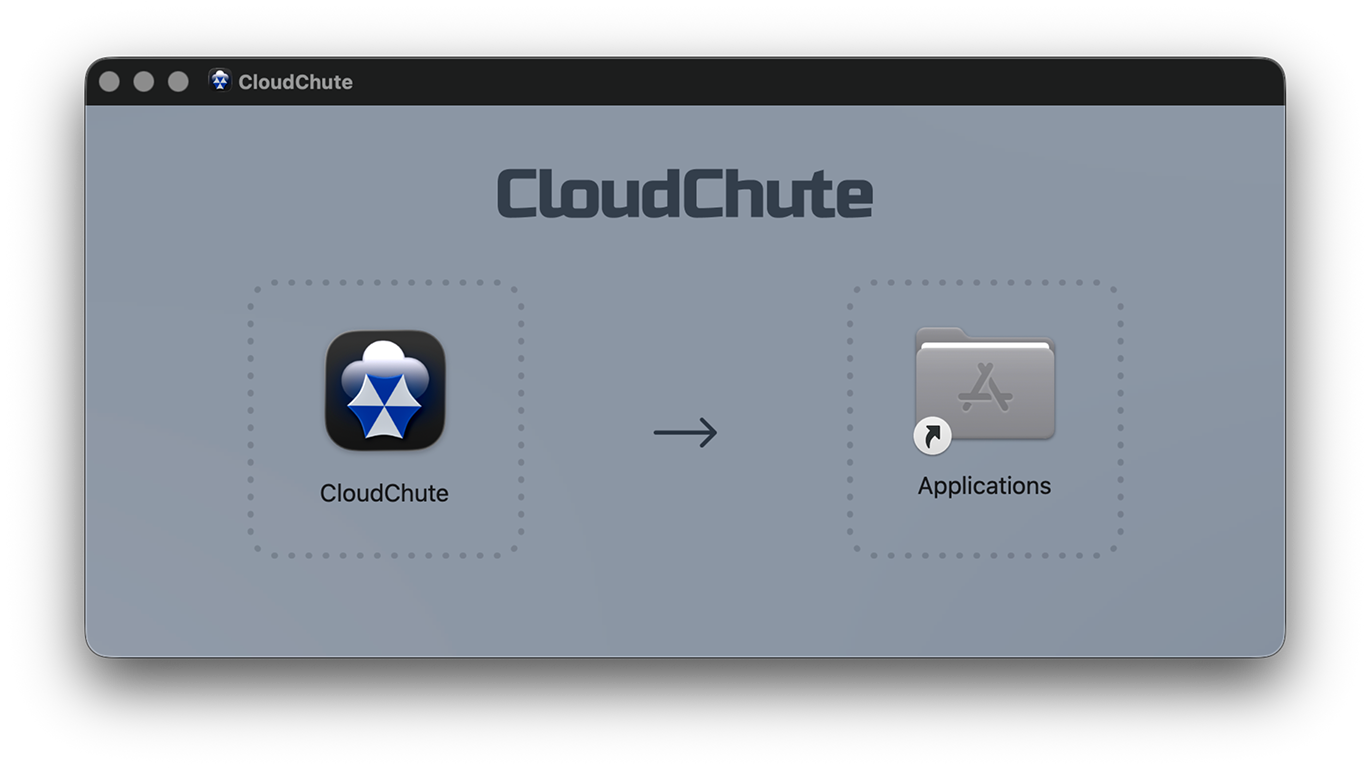
Drag the CloudChute icon to your /Applications folder and launch the app. It will appear in your macOS Menu Bar.
Open CloudChute MAS from your Applications folder or Launchpad, then follow the on-screen instructions to complete setup.
Step 2 Choose where to keep your backup
Choose the cloud storage you already use.

Google Drive

Dropbox

Box


Amazon S3 & compatible
(For advanced users)
Choose your provider and follow the steps to connect your account. Don't forget to approve the access permissions your storage provider requests, or CloudChute won't be able to connect.
Using Amazon S3? Follow our Amazon S3 guide.
Step 3 Keep your backups private
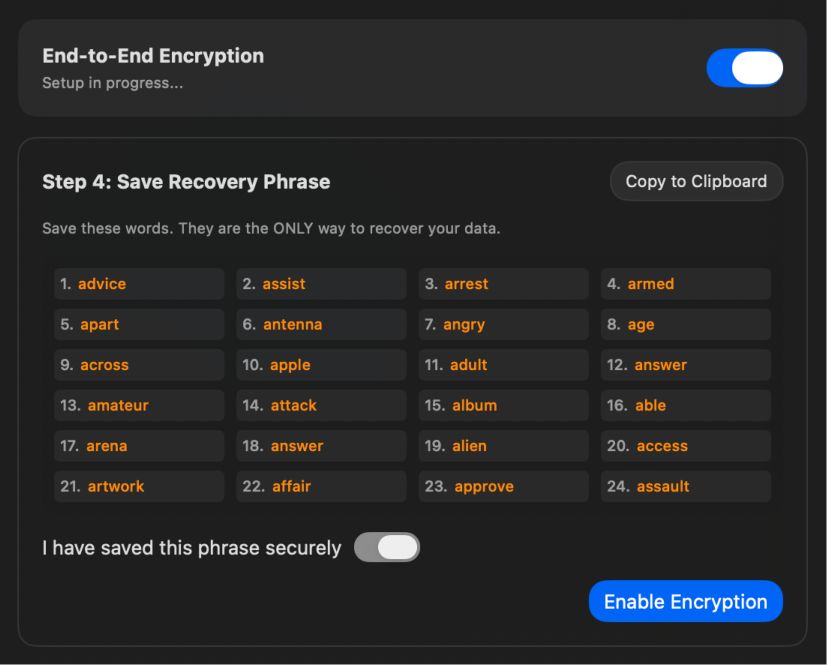
Encryption helps keep your personal files private. Your files are encrypted on your Mac before they're uploaded to your cloud storage.
We'd recommend turning encryption on, but don't worry if you're not ready; you can always set it up later.
You can still use CloudChute to browse and restore files from your existing backup without a subscription.
Step 4 Choose what to back up
Select the folders you want to protect, then start your first backup.
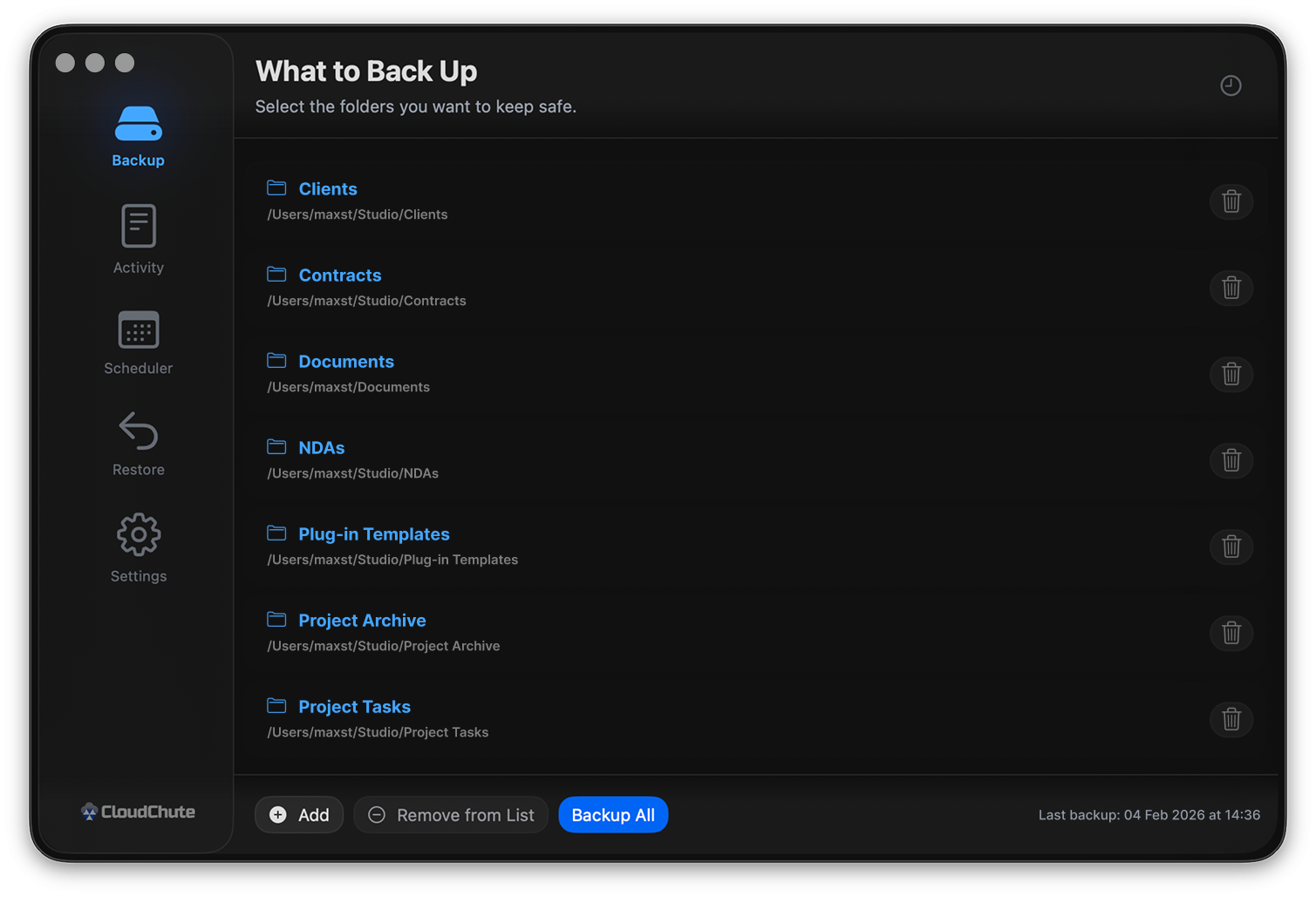
We recommend adding your Desktop Folder to get started.
That's it You're backed up
CloudChute sits in the menu bar, on by default, and backs up on the schedule you chose. Click the icon for the last backup, the next run, and recent activity. With a schedule on, the icon stays after you quit.
Need more help? Have a look at our FAQs.